How to Resolve QBCFMonitorService Not Running on This Computer
Small and medium-sized businesses consider QuickBooks as one of the most dependable accounting software. Although QuickBooks is highly reliable, it is not free from errors.
QBCFMonitorService not running on this computer is one of the different types of problems that you may face with QuickBooks.
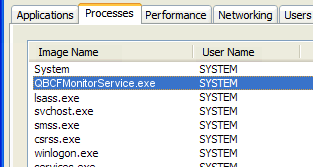
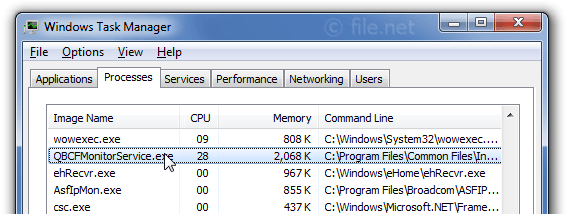
When QBCFMonitorService.exe stops working, you can get QBCFMonitorService not running on this computer error.QBCFMonitorService.exe file is one of the important QB files. To locate this file, you have to navigate to C:\Program Files\Common File\Intuit\QuickBooks. If in case, you want to uninstall it, then you are required to uninstall your QB.
When does QBCFMonitorService not running on this computer issue appear?
QuickBooks Company File Monitoring Service(QBCFMonitorService) not running error may occur when your QuickBooks application is starting or while you are accessing something in QuickBooks application.
Why does QBCFMonitorService not running on this computer error occur?
One of the following reasons can lead to this error –
- Corrupted QBCFMonitorService.exe files due to a virus or any other malware.
- Windows registry errors leading to problems with QBCFMonitorService.exe file.
- QBCFMonitorService.exe file may have been mistakenly deleted by a program installed on the system.
- QuickBooks cannot communicate over the Internet because firewall software has blocked access.
- There is some sort of conflict between a program and QBCFMonitorService.exe.
- Installation of the QB software has not been done correctly or completely.
How you can solve the QBCFMonitorService not running on this computer error?
Various solutions are available to fix QBCFMonitorService not running on this computer error. You can choose a solution depending on the cause. Before you proceed to apply any of the solutions given below, back up your PC and QuickBooks data so that if in case data loss occurs, you have the backup. You should also have installation CDs of Microsoft Windows and QuickBooks along with the license numbers if in case you need to reinstall any of these.
Restart QBCFMonitorService manually
You have to restartQBCFMonitorServicemanually. In the QBCFMonitorService’s service properties, set startup to automatic. Login user account should not be a QuickBooks user, but a local system account.
Set recovery options for first and second failures to restart the service. For third and subsequent failures, set these options to Take No Action. These settings are recommended because one needs to diagnose the real problem that is causing QBCFMonitorService to fail repeatedly, otherwise you would enter into a constant restart loop. Restart your PC and check now for QBCFMonitorService error.
Run a comprehensive scan
Use a high-quality antivirus program to perform a full scan of your PC. Your antivirus program should scan your PC for not only viruses and trojans, but also for worms, rootkits, etc. If in case your antivirus software detects some kind of malware, remove it. Now, reboot your system and check for the QBCFMonitorService not running on this computer error.
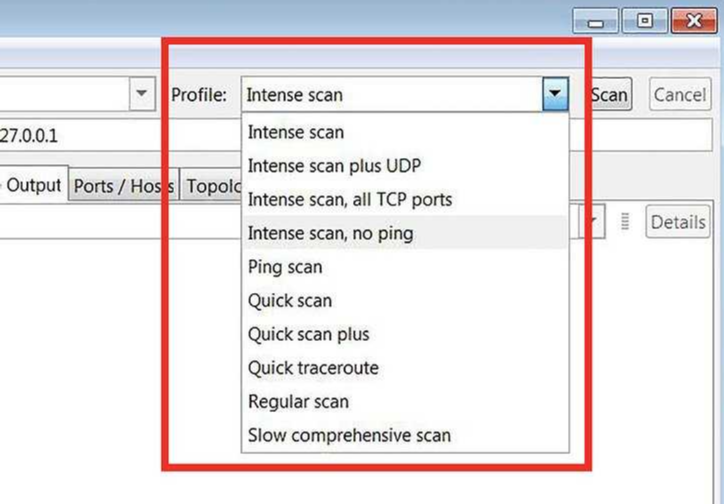 Update your firewall software and change its configuration
Firewall plays an important role in how QuickBooks can communicate over the network and Internet. Update your firewall software. You have to add exceptions and check ports required by QuickBooks are being blocked or not. If they are blocked, open them to facilitate QuickBooks communication.
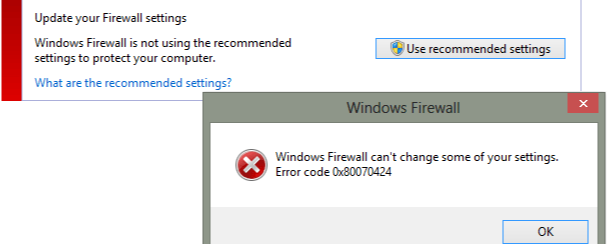
Fix Windows registry
QBCFMonitorService.exe might be not functioning properly because of Windows registry errors. You have to fix these errors in Windows registry. Before trying to fix Windows registry errors, backup Windows registry.
Perform QuickBooks repair
Repairing QuickBooks may fix QBCFMonitorService not running on this computer error.
Disk cleanup
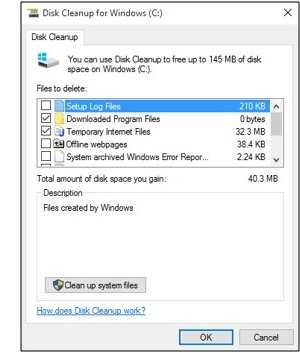
Disk cleanup cleans files that can be safely deleted and are no longer of any use. By cleaning unnecessary files, you can make your PC run faster and perform better.
Use the Windows System File Checker (SFC) tool
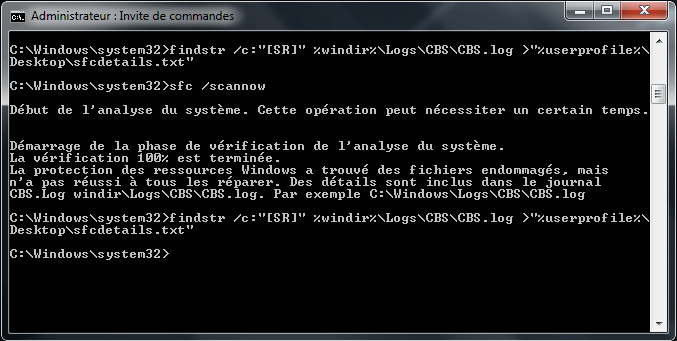
This tool helps you to scan and repair missing or corrupted system files in Microsoft Windows.
Try uninstalling and reinstalling
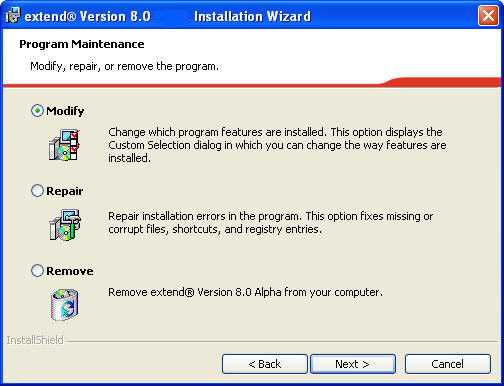
Uninstalling and then reinstalling QB might fix QBCFMonitorService not running on this computer error.
Uninstall unrequired programs
There must be some programs that you don’t need. Uninstall such programs. At Windows startup, only necessary programs should run automatically.
Ensure that Windows and QuickBooks are fully updated
The frequency of errors is less when programs are fully updated. For Windows and QuickBooks, automatic updates should be turned on. If your PC is set for back up periodically along with the creation of restore points, then you can restore system files to an earlier state if the need arises.
The solutions given above should fix QBCFMonitorService not running on this computer issue. But, if you are facing any difficulty in applying any of these solutions, or if the error fails to get fix, you can call us at our QuickBooks Customer Support Phone Number 1-888-502-0363 to get expert technical assistance.
You may also read other blogs:
How to Open Qbw File Without QuickBooks?
 (No Ratings Yet)
 Loading...