How to delete a deposit in QuickBooks?
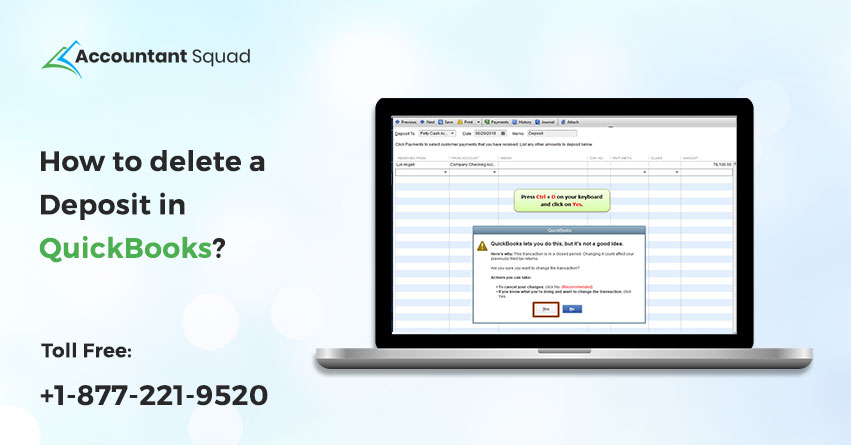
We all are aware of the QuickBooks software that is used by various business owners for their accounting and financial purposes. This software has become more than software to people who have been using it from the time of its inception. QuickBooks solution plays the role of an accountant who performs all your business activities and file taxes on your behalf. Many tasks can be performed easily with the help of QuickBooks software. Including these features, entering deposits are also taken care of by QuickBooks.
Sometimes, you may enter a wrong payment that can lead to a big disappointment. But, there is nothing to take the stress. As you are allowed to delete such deposits QuickBooks has entered mistakenly. Today, we will explain “how to delete a deposit in QuickBooks”?
Introduction: QuickBooks Payments
Before knowing the steps to delete or undo a deposit in QuickBooks, we would like to tell you that there are two categories for recording QuickBooks payments:
- Deposited payments
- Undeposited payments
You are required to perform the whole process to delete a deposit in QuickBooks.
The process to delete a deposit in QuickBooks
Below-mentioned is the steps to delete a deposit in QuickBooks. You are required to apply the steps carefully. You can find out the Delete Deposit under the Edit option if you have selected the deposit within the register. In case of having lots of payments in one deposit, launch one transaction. After that, choose Delete Line. Now, attempt the following steps:
- Firstly, you are required to choose Lists.
- Then, click on the Chart of Accounts option.
- After that, you have to double-click on the Account.
- Next, choose Deposit.
- And then, delete a payment by choosing it from the list.
- You are required to choose Edit and click on Delete Line.
- You are required to click on Delete Deposit to delete all the deposits.
- Finally, you have to click on OK.
You May Read Also: Quicken Vs QuickBooks: Which one will be better for your business?
How to undo a deposit in QuickBooks?
In QuickBooks, you can undo a deposit under the Deposit Window. While performing so, you easily remove payments in case of utilizing the undeposited fund. Here are the completed steps to undo a deposit in QuickBooks.
- First of all, you are required to choose the QuickBooks Homepage.
- Launch Record Deposit.
- And then, choose the Banking menu and choose to Make Deposits.
- After that, you need to choose Cancel.
- Select Previous via transactions till you place the deposits that need to be deleted.
- Finally, choose the Edit menu and click on Delete Deposit.
How to delete duplicate payments in QuickBooks?
After understanding the procedure to delete a deposit in QuickBooks, you might be wondering to get the complete steps to delete duplicate payments in QuickBooks. Here, we have provided you the complete steps to do so. You should follow them respectively:
- First of all, choose the QuickBooks icon and select Company File.
- After that, click on Make a Deposit in the Banking menu.
- Select Edit after selecting the part that you want to remove.
- Choose Edit Delete Line and then, select Save for changes.
- Go to the Lists menu and choose Chart of Accounts.
- After that, you need to double-tap on the undeposited funds.
Lastly, choose the duplicate payments and click on Delete in the Edit option.
You May Read Also: QuickBooks Database Server Manager
Steps to undo Deposited Payment in QuickBooks
Under-mentioned is the steps to delete or undo deposited payment in QuickBooks. You can follow them if you need to undo any deposited payment:
- Firstly, go to the Banking tab and choose Record Deposits.
- Choose Cancel in the Make Deposits View option.
- After that, click on Delete payments in QuickBooks.
- You are required to choose a particular deposit. In case, you are unable to view it, choose the previous.
- Then, choose the Edit menu and click on Delete Deposit.
- Lastly, press OK.
Steps to undo a Payment from Undeposited Funds
- First of all, choose Lists in QuickBooks.
- Then, you are required to click on the Chart of Accounts.
- Choose undeposited funds.
- After that, you have to choose Delete Deposit by selecting the Amount to be deleted.
- Finally, choose OK.
To sum up
We hope that the above-mentioned blog consists of all the required information about “how to delete a deposit in QuickBooks “. In our knowledge, you can be easily deleted such deposits after following the simple steps mentioned above. Payments are the most integral part of a business and should be entered correctly. Otherwise, you may have to bear a big loss to the business. In case, you have entered an incorrect payment, go through the steps to delete deposits via our blog.
If you are still facing issues while deleting deposits, get in touch with our team by dialing our toll-free QuickBooks Support Phone Number 1-855-365-6O12.
Read Also :
 (0 votes, average: 0.00 out of 5)
You need to be a registered member to rate this.
 Loading...