How to Troubleshoot QuickBooks PDF Converter?

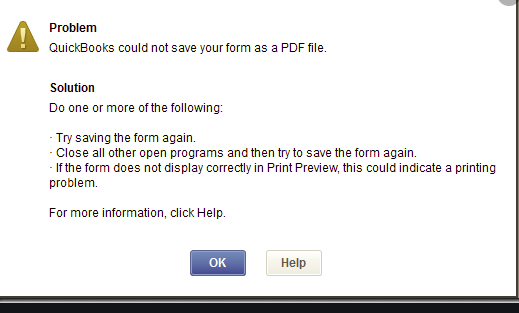
QuickBooks PDF Converter is of great benefit as it allows you to share QB files with those business associates who do not have QB installed on their computers. You can convert your company’s QuickBooks reports and forms into PDF format and then share with your associates. If you are facing issues in printing, emailing or saving as a PDF file from your QB Desktop, then you can run the QuickBooks PDF Converter Repair Tool to fix the issue. Before you use this tool, update your QuickBooks to the latest release. You can download QB PDF & Print Repair Tool from the Intuit website. If you are facing any problem with your Converter, then to troubleshoot Pdf converter not working, you may have to delete and reinstall QuickBooks Pdf Converter.
How to delete QuickBooks PDF Converter?
QuickBooks PDF Converter is located in C:\ProgramData\Intuit\QuickBooks XX (XX denotes the QB version or year).
To delete the converter, follow the steps given below –
- First of all, login into the Windows with an Administrator account.
- If you are using Microsoft Windows XP, then to open the Printers and Faxes window, follow these steps -
- Go to the Windows Start button on the bottom-left of the screen, click it, and select Run.
- In the Run window, type the words - control printers.
- Then, click the OK button.

- If you are using newer versions of Microsoft Windows including Windows 10, then to open the Printers and Faxes / Devices and Printers window, follow these steps -
- Go to the Windows Logo button on the bottom-left of the screen, click it, and choose Run. If in case Run is not available, you can use the Start Search box to find Run.
- In the Run window, type the words - control printers.
- Then, click the OK button.
- In the Printers and Faxes/ Devices and Printers window that gets opened, right-click the QuickBooks PDF Converter icon.
- From the list that appears on right-clicking, choose Delete.
- In the confirmation window, click the Yes button.
How to Reinstall QuickBooks PDF Converter?
Follow the steps given below to reinstall QuickBooks PDF Converter Windows 10–
- Look for the QuickBooks icon on your desktop.
- Right-click the QB icon.
- From the list that appears on right-clicking, choose Properties.
- In the Properties window, click Find Target or Open File Location.
- You will be taken to a Windows Explorer window.
- Now, in the Windows Explorer window, double-click the Install.exe file or Install Application.
- This will install the PDF Converter.
- Once the installation process has completed, click the OK button.
- If you are using Microsoft Windows XP, then to open the Printers and Faxes window, follow these steps -
- Go to the Windows Start button on the bottom-left of the screen, click it, and select Run.
- In the Run window, type the words - control printers.
- Then, click the OK button.
- If you are using newer versions of Microsoft Windows including Windows 10, then to open the Printers and Faxes / Devices and Printers window, follow these steps -
- Go to the Windows Logo button on the bottom-left of the screen, click it, and choose Run. If in case Run is not available, you can use the Start Search box to find Run.
- In the Run window, type the words - control printers.
- Then, click the OK button.
- In the Printers and Faxes / Devices and Printers window that gets opened, right-click Amyuni Document Converter.
- From the list that appears on right-clicking, select Rename.
- Delete the words - Amyuni Document Converter, type the words - QuickBooks PDF Converter and hit Enter. Remember that you have to type the new name exactly as given here, including spaces between the words.
After you have deleted and QB Pdf Converter download, check whether it is working or not.
If you face any problem in applying the steps given above to delete and reinstall QuickBooks Pdf Converter, or if QuickBooks Pdf Converter Repair Tool is unable to fix your issue, you can call us at our QuickBooks Customer Support Number 1-855-365-6O12 to get expert technical assistance.

 (129 votes, average: 4.10 out of 5)
You need to be a registered member to rate this.
 Loading...