Troubleshooting solutions to deal with Quicken Error code CC-503
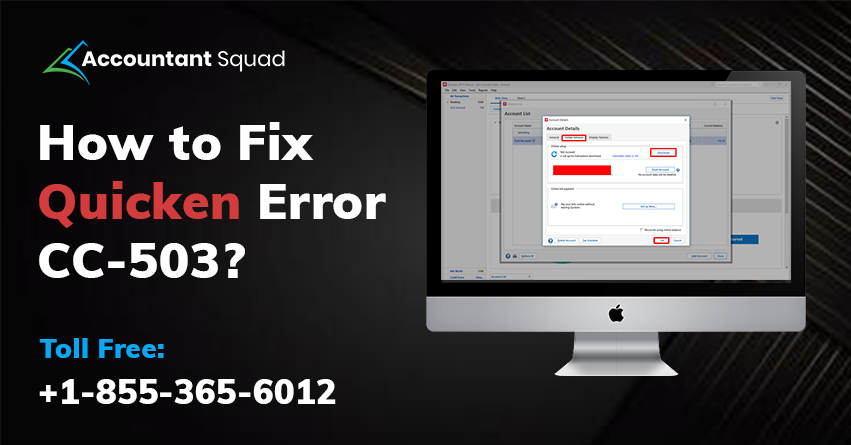
Quicken Error code CC-503
As of now, Quicken is a very expedient financial software that is widely used by various business owners for managing finances. Though, various error codes have been stated by many business owners while using the Quicken software. Our today’s motive is to tell you about one such error code that might be occurring frequently on your Pc’s screen i.e. Quicken Error CC-503. If you are seeking the solutions to get rid of the same issue or want technicians’ help, read this post carefully or directly get in touch with our team.
What does Quicken Error CC-503 indicate?
Quicken Error Code CC-503 takes place during updating the bank account using Online Services. Additionally, you may also get the same error code due to the incorrect or outdated login information of your bank account.
Here, we are describing all the possible solutions to get rid of CC-503 error Quicken. You are suggested to read the post carefully in order to deal with the same issue instantly.
Probable reasons behind the occurrence of Quicken Error Code CC-503
There can be several causes of why you have got stuck with the error code cc-503. A few of them have been listed underneath. You can take a brief look at it once so that the error can be resolved accordingly.
- Because of the incorrect Bank Login Information.
- When you are using outdated Quicken software, this leads to an issue.
- A corrupted installation of the software may give rise to the error.
- Because of a malware or virus attack.
- Due to the deletion of some necessary files related to Quicken.
You May Read Also: How To Fix Quicken Error CC 501
Solutions to eliminate Error CC-503 Quicken
Before attempting the underneath solutions, you are highly recommended to update the software to the latest release. You can apply the following steps to do the same.
- Firstly, access Quicken.
- Choose the Help menu and select Check for Updates.
- Finally, click on Yes if the updates are available.
Now, you may proceed further and apply the below-mentioned solutions one by one to fix error cc-503 in quicken.
Solution 1: Re-check your bank’s website Login information
- Login to the bank’s website by entering your existing username and password.
- And then, make sure that you have entered the correct login information.
You should keep in mind that Quicken has a limit of a maximum of 16 characters password. If your password exceeds that limit, you have to make it shorter.
Solution 2: Updating the Vault Password
- First of all, access Quicken and go to Tools.
- After that, choose Password Vault.
- Now, select Add or Edit Passwords.
- Meanwhile, choose the account and select Delete Password.
- Select Yes to confirm.
- Finally, select Done and check whether the error code CC-503 persists.
Solution 3: Deactivating and Reactivating bank account
Initially, you need to deactivate the account by following the steps listed below.
- Firstly, choose the Tools option.
- Click on Account List by pressing Ctrl + A keys.
- And then, select the Online Services tab and choose Deactivate.
- Now, click on Yes to confirm.
- At last, choose OK and Done.
Now, follow the steps mentioned below to reactive the bank account.
- In the initial step, choose the Tools option and go to Add Account option.
- After that, click on the account type like Savings, Checking, etc.
- Now, select the Advanced Setup option and write down the name of your bank or financial institution.
- Click on Next.
- Meanwhile, choose an appropriate method and click on Next.
- And then, write down the Username and Password
- Choose to Save this password and click on Connect
- Next, a list of accounts will display where you have to reactivate the account.
- Now, you need to link the account with an existing one in Quicken.
- Finally, choose Next and Finish.
You May Read Also: How To fix Quicken Error CC 502?
Solution 4: Verifying the Bank’s Login Information
- Firstly, open Notepad and enter your login information.
- Choose Ctrl + C the login information and paste it to another location in Quicken to verify
Ending the post!
We suppose that the aforementioned post has helped you out in getting all the required information regarding Quicken Error CC-503. We have tried to provide you with all the effective and relevant solutions to deal with the same. If the issue still occurs even after applying all the relevant solutions, you may hire a technician by contacting our team. To give us a ring, you are recommended to dial our Quicken Error Support Phone Number (855-365-6O12). We are here all round the clock to guide you out whatever the issue is.
 (0 votes, average: 0.00 out of 5)
You need to be a registered member to rate this.
 Loading...